USING LEVELS TO CLEAN UP A DRAWING
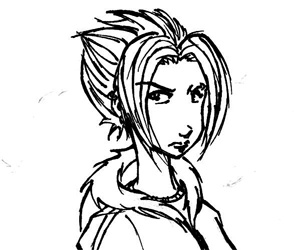
BEFORE ADJUSTMENT:
As you can see, there are some smudgy marks in the image below. Adjusting the levels will help get rid of unwanted smudges and tighten up your lines for a shiny-clean image. (Note that I tweaked this image a little to make the smudges more noticable for the sake of clarity.)
STEP 1:
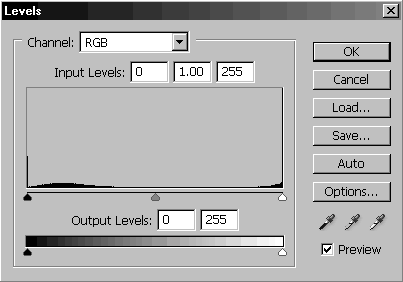
Highlight the layer you want to clean up. Open the Levels window (ctrl+l).
STEP 2:
Make sure the Preview box is checked. Use the three triangular sliders at the bottom of the histogram to adjust your image. Dragging the black slider to the right will darken your image and increase the contrast of your lines. Dragging the white slider to the left will brighten the white areas and help eliminate smudges and light grey marks. Dragging the grey slider in either direction will make subtle adjustments to the edges of your lines.
STEP 3:
Once you have your line art adjusted to taste, press OK. Be sure to check over the entire image to make sure you like the way it looks. If not, Undo the changes (ctrl+z) and play with the Levels again.
PROTIP:
When you get accustomed to working with levels, you'll start to notice that your black and white triangles tend to end up either at the edges of peaks in the histogram, or aligned with the peaks themselves. Also, your grey triangle tends to end up in the middle of the biggest trough. This isn't always the case, and nothing can substitute for a good eye, but it's a nice time saver.